Salla product options let you sell one product in several sizes, colors or styles, each with its own quantity and, when needed, its own price. A tidy product page is only half the job, though. If every option does not carry a clear SKU and an accurate stock figure, your warehouse will receive orders for sizes that ran out last week, and your books will show stock that does not match the shelves.
The short answer: treat every combination (for example, a black shirt in size L) as a separate item with a unique SKU and its own quantity, then map that SKU to the matching item in your ERP. Stock then updates after every order, and revenue and cost land on the item that actually left the warehouse.
This guide covers how options work in the Salla dashboard, when to set a price per option, what the default option does, and why the SKU is the key that connects your store, your warehouse and your accounts.
What are Product Options on Salla?
Product options are the attributes a customer chooses before adding a product to the cart, such as size, color or volume. Each option has values, and each combination of values is a separate variant of the product.
You manage options from Products, then Categories and Options, then Options. You can also add them directly in the Options section of a product page and save them as a template to reuse on other products.
Option Types on Salla: Text, Color and Image
According to the Salla Help Center, an option can be displayed in three ways:
- Text: suited to sizes and volumes, such as S, M and L or 250 ml and 500 ml.
- Color: you set the color name and shade, and you can link each color to its own image so the main product photo changes when the customer picks it.
- Image: each value is shown as a picture, which works well for patterns and materials.
The 100-Variant Limit Per Product
Salla allows a maximum of 100 variants per product, calculated by multiplying the number of values in each option. A color option with 20 values and a size option with 5 values reaches 100 variants, and adding a sixth size triggers an error. If you are close to the limit, split the product into two. That also keeps the ERP mapping simpler.
One Price Per Product or a Price Per Option?
Use one price when all options cost you the same, and a price per option when cost or value differs. Salla does not require a price for each option: you can keep the base product price or set different prices for some options only.
Option prices and quantities are set in the Quantities section of the product page after the options are added. When a product has options at different prices, you can enable “starting from” pricing in the product settings.
| Situation | Pricing Approach | Example in SAR, VAT Inclusive |
|---|---|---|
| A shirt in four sizes from the same supplier at the same cost | One product price | SAR 89 for every size |
| Size XXL costs more than the other sizes | A price for that option | SAR 89 for regular sizes, SAR 99 for XXL |
| A perfume in three volumes | A price per option | SAR 149, 229 and 319 |
| Two colors with identical cost | One product price | SAR 59 for both colors |
From an accounting point of view, one price does not mean one item. Even if every size sells for SAR 89, each size keeps its own quantity in the warehouse. At SAR 89 including 15% VAT, net revenue is SAR 77.39 and VAT is SAR 11.61, and both should be recorded against the item that was actually sold.
The Default Option on Salla and Its Effect on Stock
The default option is the value that appears pre-selected when a customer opens the product page; the customer can still choose another value. You set it by selecting the required value, such as a particular color, in the product options.
The default option is a display setting, not a stock setting. It does not reserve quantity or change balances. It does shape sales, however, because many customers add the product to the cart without changing the pre-selected value. A few practical rules:
- Choose a default value with healthy stock, not your scarcest size.
- Review the default when that value runs out, so the page does not open on an unavailable option.
- If options have different prices, make sure the customer sees the price of the value they are actually buying.
An SKU for Every Option: The Key to ERP Integration
An SKU (stock keeping unit) is the code that identifies each item in your warehouse, and it is the clearest way to match a Salla variant to an ERP item. Salla provides an SKU field in the product data, and Salla’s developer documentation shows that each variant carries its own SKU, barcode, price, sale price, cost price, quantity and weight.
Without an SKU per option, your accounting system sees one “shirt” with a combined quantity and cannot tell which size ran out. At stocktake you will find differences between sizes that nothing in the books explains.
A Naming Rule for Variant SKUs
Pick a fixed rule your warehouse team understands and your system can read without ambiguity, for example: product code, then color, then size.
| Product | Color | Size | Suggested SKU |
|---|---|---|---|
| Cotton shirt TSH01 | Black | M | TSH01-BLK-M |
| Cotton shirt TSH01 | Black | L | TSH01-BLK-L |
| Cotton shirt TSH01 | White | M | TSH01-WHT-M |
| Cotton shirt TSH01 | White | L | TSH01-WHT-L |
Keep every code unique across the whole store and do not change it once the integration is live, because a new code breaks the link between past orders and the item.
Also read: how connecting Salla to an ERP ends manual data entry.
If you have a large catalogue with many options and want to clean up its codes before connecting, you can talk to the Daysum team about your product structure.
How Salla Product Options Move Into Daysum
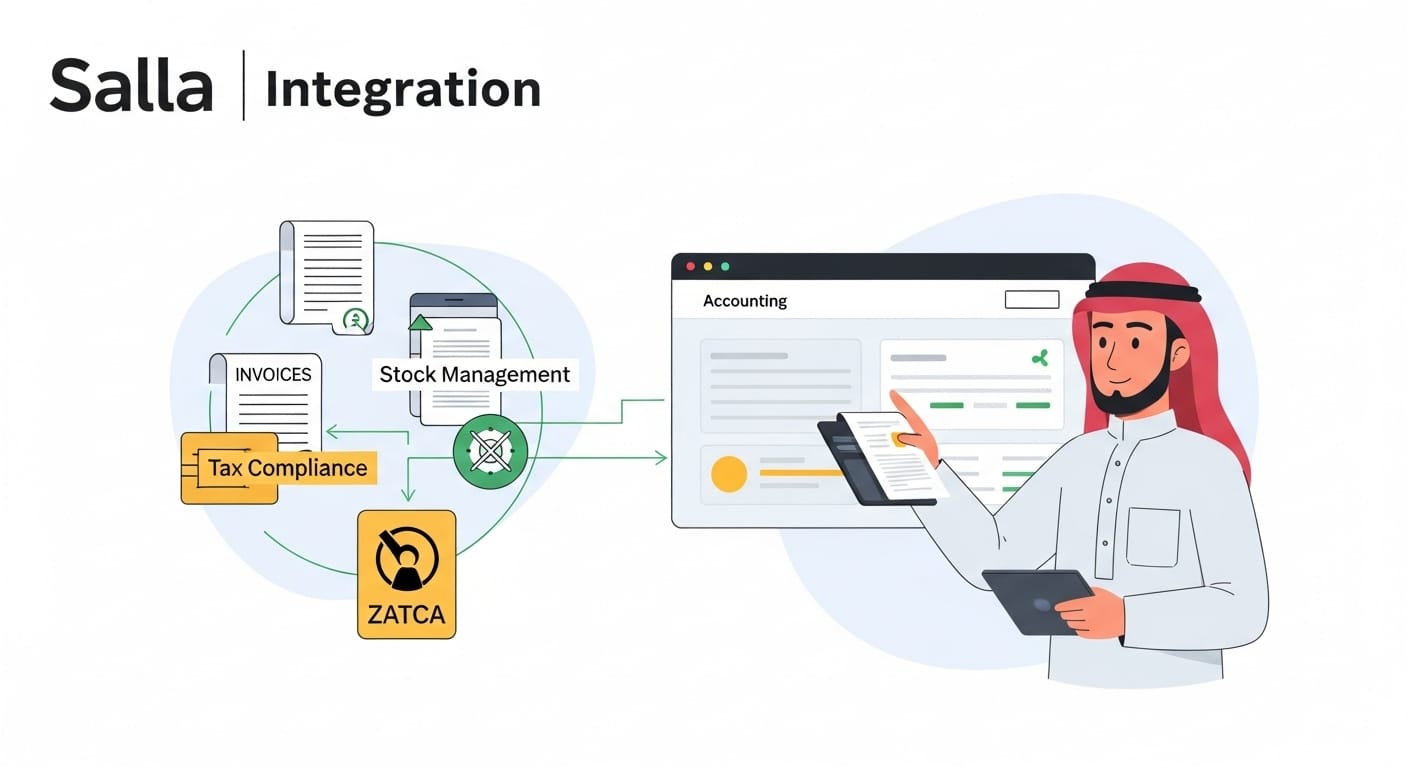
The Daysum Salla integration app carries orders from your store into the accounting system and on to ZATCA, and that flow only works when items match on both sides. Daysum is built on Odoo, where every product variant is a separate item with its own code, quantity and cost.
Matching Options to Items
Before you switch the integration on, check that every Salla variant has exactly one matching item with the same code. A practical sequence:
- Export your Salla product list with options and codes.
- Compare it with the item list in the system and pull out missing or duplicate codes.
- Fill in missing codes in Salla before connecting, not after.
- Enter opening balances for each item from a physical count, not from store figures.
The exact way options and the default option are mapped inside the Daysum app is confirmed with the implementation team during setup, based on how your store is built.
Updating Quantities After Every Order
When orders arrive in the system against the right items, stock is deducted from the variant that was actually sold, and revenue and cost of goods sold are recorded against it. If you sell from more than one branch or warehouse, each order also needs a stock source; we cover that in our guide to multi-warehouse stock for Salla stores.
Common Integration Mistakes
- One SKU for all options: sizes merge into one item and stock accuracy is lost.
- Duplicate codes across products: stock is deducted from a product that was not sold.
- Changing a code after go-live: past orders lose their link to the item.
- Adding a new option value without a code: its orders reach the system with no matching item.
- Using store balances as opening balances: past errors move into the new system.
Conclusion: Salla Product Options in Order from Store to Warehouse
Salla product options are a selling tool, and they become a stock-control tool once every variant has a unique SKU and its own quantity. Set a price per option only when cost or value differs, pick a default option that is in stock, and fix your coding rule before you connect. For the wider picture, see how Salla ERP integration automates e-commerce operations.
If you want your store orders to reach your accounts and e-invoicing against the right items, contact the Daysum team to review your product options and integration plan.
FAQs About Salla Product Options
In the dashboard, open Products, create a product or open an existing one, go to the Options section and click Add new option. Enter the option name, its type (text, color or image) and its values, then set quantities in the Quantities section. You can also create options in advance under Categories and Options and reuse them across products.
Yes. After adding options, you can set a specific price for each one in the Quantities section of the product page. A price per option is not mandatory, so you can keep the base price or change the price of some options only. When prices differ, you can show "starting from" pricing through the product settings.
Your accounting system can no longer tell options apart, so it treats sizes or colors as one item. The result is stocktake differences, no clear view of what has actually run out, and a real chance of selling a size that is not in the warehouse. Give every variant a unique code before the integration goes live.
The limit is 100 variants per product, calculated by multiplying the number of values in each option. An option with 20 values combined with an option with 5 values makes 100 variants. If you need more, split the product into two separate products.
The default option does not reserve any quantity or change balances; it only controls what is pre-selected on the page. It does influence ordering patterns, because some customers buy the pre-selected value without changing it. Choose a value with enough stock and review it when that value sells out.